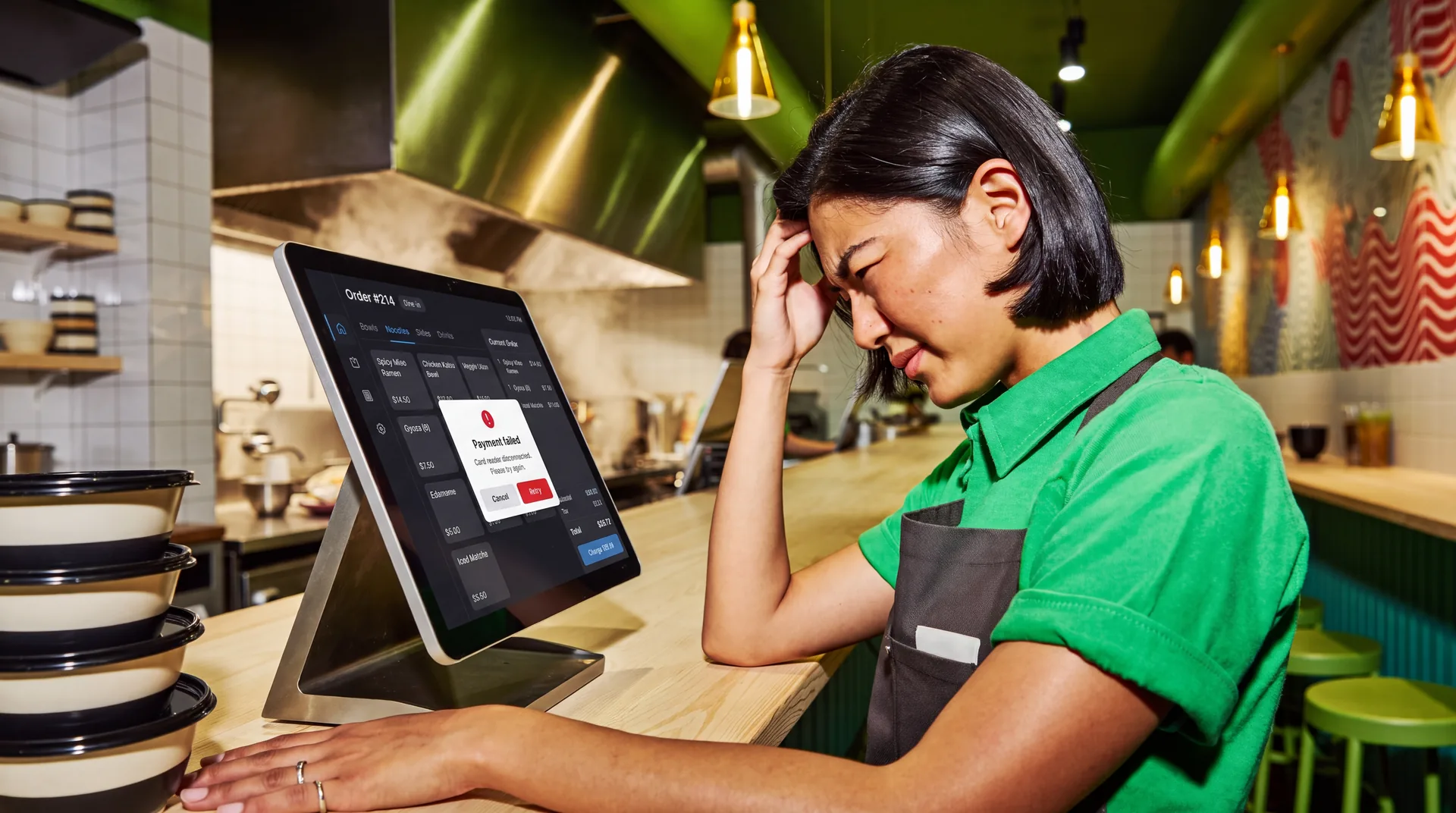
The most common restaurant POS problems are frozen or slow screens, internet outages, card payment errors, kitchen tickets that don't print, cash drawers that won't open, and menus that fall out of sync with delivery apps. Some have a quick local fix, while others need your POS provider or payment processor. Start fixing any POS problem the same way: check whether the problem is on one device, every device, or your provider's side.
That first check narrows down the cause. A frozen tablet and a provider outage can look the same at the counter, but restarting a device won't fix an outage.
If the POS has been offline, check for orders or payments waiting to upload first, and confirm your data has synced or been backed up. On some systems, signing out, deleting the app, or resetting a device can erase transactions that haven't synced yet. A simple restart is usually safer, but check your provider's guidance.
Jump to your problem
Most common restaurant POS problems and solutions
The table below sorts the most common restaurant POS problems by where they start, with the likely cause and the first thing to try. The five types are hardware, software, network, payments, and your POS provider. Each one is covered in detail further down.
| Symptom | Type | Likely cause | First fix |
|---|---|---|---|
| POS terminal won't turn on | Hardware | Outlet, cable, adapter, or tripped surge protector | Test the outlet and check each power connection |
| Kitchen tickets not printing | Hardware | Paper, lid, power, or cable issue | Print a self-test; if it works, check the connection |
| Cash drawer won't open | Hardware | Printer off, cable in the wrong port, or setting turned off | Check the printer, reseat the cable, and try the key |
| Card reader not connecting | Hardware | Lost pairing or power | Power-cycle the reader and pair it again |
| Screen frozen or app crashing | Software | Memory overload, old software, or weak Wi-Fi | Check for pending payments, reopen the app, then restart |
| Tickets at the wrong station | Software | Item linked to the wrong station, or printer address changed | Fix the item's station and give printers fixed addresses |
| Sold-out item still on delivery apps | Software | Slow menu sync or an unsupported menu setup | Keep it unavailable, republish, and pause it in the app |
| Reports don't match sales | Software | Offline sales not uploaded, or open checks | Wait for sync, close open checks, then compare records |
| Every device shows offline | Network | Internet, router, or cables | Check the router lights and cables, then call your internet provider |
| POS down, but the internet works | Provider | An outage at your POS provider | Check the provider's status page and switch to your outage plan |
| Card declined or timed out | Payments | The card, a lost connection, or a processor issue | Check the payment's status before retrying, then ask for another card if it was declined |
Not sure which type of problem you have, or seeing more than one at once? The next section helps you find where it starts.
How to troubleshoot a POS system: find where the problem starts
Most POS problems start in one of five places: the hardware, the software, your network, your payment processor, or your POS provider. Knowing which one you're dealing with tells you which fix to try and who to call.
| Type | What it covers | Typical signs |
|---|---|---|
| Hardware | The terminal, handhelds, printers, cash drawer, card readers, and kiosks | No power, a cracked or unresponsive screen, paper jams, or a problem that stays with one device |
| Software | The POS app, its settings, menus, data, and integrations | Freezes, error messages, wrong routing or prices, sync failures, or problems right after an update |
| Network | Your router, Wi-Fi, cables, and internet line | Every device shows offline, and phones on the same Wi-Fi can't load websites either |
| Payments | Your card readers, payment processor, and offline payments | Declines or timeouts while orders still go through |
| Provider | Your POS provider's cloud systems | The internet works, but the POS is down and the status page shows an outage |
These five questions sort most POS issues in about five minutes:
- Is only one device affected? The problem is that device's hardware or app. Check its cable, paper, battery, and Wi-Fi, then restart it.
- Can other devices get online? If not, the problem is your local network or internet line.
- Are only card payments failing while orders still go through? The problem is likely the reader, its connection, or your payment processor. See the payment section below.
- Does your provider's status page show an outage? If so, switch to your outage plan.
- Still not working? It may be a software setting or account issue. Call support with the error message and what you tried.
To check the internet, open a website on a phone connected to the restaurant Wi-Fi. To check for a provider outage, look at your POS provider's status page.
Outage trackers such as Downdetector also show whether other businesses are reporting the same problem. Keep both links and your support number on a card at every station.
What common POS error messages mean
The error message on screen is often the fastest clue. Wording differs from one POS to the next, but most messages fall into a few groups. Photograph the exact message before you restart, because support will ask for it.
| Message | What it usually means | What to do |
|---|---|---|
| "Offline" or "No connection" | The device can't reach the internet or your provider | Check other devices, the router, and the status page |
| "POS unavailable" or "Server error" | The device can't reach the service that runs the POS | Check your internet and the status page, then follow your provider's recovery steps |
| "Printer offline" | The POS can't reach the printer | Check power, paper, and cables, then print a self-test |
| "Transaction timed out" | The payment got no response in time | Check the transaction's status before you retry |
| "Card read error" | The reader couldn't read the card | Try again, or ask the guest to tap if your reader supports it |
| "Sync failed" or "Pending upload" | Data hasn't reached the cloud yet | Keep the device on and connected, and don't reset it |
After any fix, confirm it worked. Send a test ticket to each station, run a small test payment, and check that the order and payment show the right status in your POS.
POS hardware problems
Hardware problems involve the physical equipment that makes up a restaurant POS system: the terminal, handhelds, printers, cash drawer, card readers, and kiosks. They usually affect one device at a time and often show physical signs, which makes them the easiest to spot.
POS terminal won't turn on
A blank terminal is most often a power problem, but it can also be a loose cable, a failed adapter, or the display itself. Test the outlet with another device, then check the power cable, the adapter, and any surge protector that may have tripped. If the terminal still shows no sign of power, contact your hardware provider before opening or repairing it.
If a terminal shuts off when the ice machine or fryer starts, have a qualified electrician check the circuit. A dedicated circuit or a battery backup may help, depending on your setup.
Touchscreen not responding
Grease, water, and cracked screen protectors are common causes in a busy restaurant. Clean the screen using the manufacturer's instructions, remove any damaged protector, and restart the device. If dead spots remain after a restart, the touch panel may need repair, so contact your hardware provider.
Handhelds and tablets dying mid-shift
Batteries wear out over time. Rotate devices through chargers between rushes and keep a charged spare ready. Stop using any device with a swollen battery, because it's a safety risk.
Self-order kiosk not working
A self-order kiosk that won't take orders usually has a device problem or a software and connection problem. If the screen is blank, frozen, or won't respond to touch, treat it like a terminal: check power and cables, then restart it.
If the screen works but the menu won't load, tickets don't reach the kitchen, or payments fail, check the kiosk's menu sync, order routing, and payment connection, then your provider's status page. Check each payment's status before a guest tries again, and send guests to the counter until the kiosk is fixed.
Receipt or kitchen printer not printing
Missed kitchen tickets can do more damage than most POS problems, because nobody notices until a guest asks where their food is.
Check the paper roll, since thermal paper prints on one side only. Close the lid until it clicks, clear any jam in the cutter, and check the cables. Then print a self-test page, often by holding the feed button while turning the printer on.
If the self-test prints but POS tickets don't, the printer can print on its own, so the problem is most likely the connection, the printer's network address, or its settings in the POS. If one terminal prints to it and another doesn't, compare the failing terminal's network connection and printer settings.
Cash drawer won't open
Many cash drawers open through the receipt printer. The drawer plugs into a port on the printer, often labeled DK, and opens when a cash sale closes.
So check the printer first: it should be on, loaded with paper, and error-free. Then make sure the drawer cable is in the printer's drawer port and the open-drawer setting is on in your POS.
If it's still stuck, open it with the key and check for a jammed coin. Star Micronics' cash drawer guide covers the drawer-side checks.
Card reader not connecting: how to reset it
- Turn the reader off or unplug its power, wait 10 seconds, and turn it back on.
- If it connects by Bluetooth, pair it again from your POS settings.
- Clean the chip (EMV) slot and the tap (NFC contactless) area using the manufacturer's instructions, install any pending update, and run a small test payment.
If the reader still won't connect, contact your provider. A faulty reader may need a replacement.
POS software problems
Software problems come from the POS app, its settings, or the data it shares with other systems. The equipment works, but the system behaves wrong, and the same issue often shows up on more than one device.
POS frozen or slow: how to reset it
Freezes usually come from the app using too much memory, old software, background apps, or weak Wi-Fi. Check for pending payments first, then try these in order:
- Reopen the app. Fully close the POS app, not just minimize it, then open it again.
- Restart the device. Power it off, wait 30 seconds, and turn it back on.
A factory reset is not a troubleshooting step. Depending on the system, it can erase orders and payments that haven't synced, so check your sync or backup status and only do it when your provider's support team tells you to.
Problems after a software update
If a feature stops working right after an update, check that every device finished updating and restarted. Confirm that kitchen screens, printers, and other connected devices are back online and signed in where needed, then send a test order to each station.
If it's still broken, note the software version, the update time, and the error message before you call support. To avoid surprises, install updates after close, not right before service.
Login and permission errors
When a staff code is rejected or someone can't open a feature they need, the cause is usually their role settings. A manager should check the employee's permissions in the back office, then have them try their code again.
Tickets at the wrong station or missing from the KDS
Tickets print at the wrong station when an item is linked to the wrong station, or when a printer's network address has changed. Tickets go missing when a printer or kitchen display is offline, signed out, or assigned to the wrong station. Every menu item is linked to a station, such as grill, bar, or expo, so if burgers print at the bar, fix that item's station in your menu settings.
Network printers can also get a new IP address after a power cut or router restart, and the POS then can't find them. Ask your POS provider or IT support whether to set a DHCP reservation or a static IP address for each printer. A static address must sit outside the range your router hands out to phones and tablets, or it can clash with another device.
If the kitchen display system (KDS) misses orders, check that it's online, logged in, and assigned to the right station. Screens can log out after an update, so log it back in and resend the ticket. Keep one backup kitchen printer set up in case a screen fails.
Sold-out items still selling on delivery apps
A sold-out (86'd) item keeps selling on DoorDash or Uber Eats when the change hasn't synced from your POS, when your integration doesn't update item availability in real time, or when the item is still switched on in the delivery app itself. Keep the item marked unavailable and publish your menu again. If it still shows, use the delivery app's own availability controls to pause the item, and ask your provider or the app's merchant support to fix the sync.
Empty menu groups, deeply nested modifiers, and overlapping menu time windows can also break sync. Ask your provider whether your integration updates item availability in real time, because that is what keeps sold-out items off delivery menus.
Wrong orders and checks that won't close
Crowded buttons and too many optional modifiers can lead to wrong orders. Make key choices such as size or temperature required, and add a review step before an order fires.
A check that won't close usually has something pending, such as a remaining balance, a declined card, a tip not yet entered, or a discount waiting for approval. Before end-of-day close, have a manager review open checks and settle tips using your POS provider's process.
Wrong price or tax rate on the receipt
A wrong price or tax amount usually comes from the item, a modifier, a discount, or the tax rule set up for that location. Check the item's price, modifiers, and discounts, then check which tax rate is applied and whether it's assigned to the right location.
Run a test order to confirm the fix before service. If you're unsure which tax rate applies, ask your accountant or check your state tax agency's guidance.
Reports that don't match sales
When your sales report and your cash or card totals disagree, look for these common causes before you change anything:
- Offline payments that haven't uploaded yet
- Checks that are still open instead of settled
- A different business-day cutoff or reporting period
- Refunds, voids, or tips added after close
- Payments taken on a backup reader outside the POS
Compare your records first, then enter only sales that are truly missing.
Payroll, accounting, or loyalty not syncing
When hours, sales, or rewards stop reaching another app, check the integration's connection status in your POS settings. A connection may need to be reauthorized after a password change or an app update. Then ask your provider to resend the missing data rather than entering it twice.
POS offline or down: internet, Wi-Fi, and provider outages
When your POS is down on every device at once, the cause is usually outside the devices themselves. Start with your internet line, your local network, and your POS provider's status page.
Internet or Wi-Fi is down
- Check the cables at the terminal, the network switch, and the router. They often get bumped loose during cleaning.
- Look at the router and modem lights for red or blinking warnings.
- Restart the modem first, then the router, then the POS devices, unless your provider or internet company gives a different order. Avoid restarting while payments are processing.
- Still down? Switch to a cellular backup if you have one, and call your internet provider.
Crowded Wi-Fi causes problems even when the internet works, because guest phones and POS devices compete for the same signal. Put POS devices on their own password-protected network, and use wired connections for the counter terminal and kitchen printers. Also check that your connection meets your POS provider's minimum internet speed and network requirements.
When your POS provider is down
If your provider's status page confirms an outage, restarting devices won't fix it. Switch to your outage plan, record orders and payments with your backup process, and watch the status page for updates. When service returns, check that orders, payments, and kitchen tickets are flowing before you go back to normal.
Outages hit big brands too: in March 2024, a McDonald's global system outage caused by a third-party configuration change closed some restaurants for hours.
In October 2025, Restaurant Business reported that a 15-hour AWS outage hit many restaurant brands and local restaurants running cloud POS systems. Some restaurants with a backup device inside the store kept serving, so ask any provider whether its system has a local backup.
What offline mode covers
Many POS systems switch to offline mode when the connection drops. In-store orders, cash payments, and kitchen tickets often keep working on the local network. Taking orders offline is not the same as approving cards, though: a POS that keeps recording orders may still be unable to authorize card payments.
Online orders, delivery orders, gift cards, and live reports usually pause, and some systems hold online orders for manual approval once you reconnect. What keeps working depends on whether your system is cloud-based, on-premise, or hybrid.
POS payment problems: card declines and offline payments
Payment problems hit sales and guest trust at once, so fix them carefully. If the card reader itself won't connect, see the hardware section.
Card declined or transaction timed out
- One card fails but others work: the cause is most likely that card or its issuing bank. Read the decline message, then ask the guest for another payment method.
- Every card fails on one terminal: check that terminal's reader, connection, and payment settings. If it still fails, contact your POS provider.
- Every card fails on several terminals: check your internet and your payment provider's status page, then call your payment processor.
Before anyone retries a timed-out payment, check that transaction's status in your POS or payment dashboard. If it shows as approved or pending, don't charge again. Asking the guest to tap again too soon can charge them twice.
The risk of offline card payments
Some systems can take cards offline using store-and-forward. The payment is stored on the device and sent for approval once the connection returns. Because the card isn't approved at the time of sale, a decline can show up after the guest has left, and depending on your payment agreement, the restaurant may carry that loss.
Providers also set limits on offline payments, such as how much you can take and how long payments can wait before they must be uploaded. These limits vary by provider and hardware, so check yours before you need them, and upload payments as soon as you reconnect.
Refunds, voids, and tip adjustments after an interruption
A timeout or outage can leave a payment's status unclear. Before you issue a refund or void, check the transaction's status in your POS or payment dashboard, so you don't refund a payment that never went through or refund the same one twice. Adjust tips only after the payment shows as completed, follow your system's process for each change, and keep a record of every adjustment.
Signs of a security problem
Unknown logins, a card reader that looks tampered with, or refunds nobody approved can signal a security incident. Stop using the affected device for payments and call your POS provider and payment processor right away. Follow their instructions, keep the transaction records, and don't reset or wipe the device unless they tell you to.
The card industry's PCI DSS v4.x requirements took full effect on March 31, 2025. Ask your provider how its system supports compliance and what it expects you to do if card data may have been exposed.
POS outage checklist
Any POS can go down. The restaurants that keep serving have a plan ready before it happens, including one manager who owns the response.
| Task | During the outage | After you are back online |
|---|---|---|
| Who leads | One manager troubleshoots and calls support while the team runs the backup plan | Note what failed and what fixed it |
| Guests | Put a sign at the door or counter, give honest wait-time quotes, and pause new orders if the kitchen can't keep up | Take the sign down once orders and payments run normally |
| Taking orders | Use numbered order pads marked with the table or order number, and a printed menu with current prices | Compare paper orders with synced sales, then enter only the missing ones |
| Payments | Take cash, or use a backup card reader only if your provider has set it up; write any tip on the paper ticket | Upload offline payments right away, review declines, and record backup-reader sales once |
| Online and delivery orders | Pause online ordering and delivery apps | Turn them back on and approve or cancel queued orders |
| Kitchen | Run handwritten tickets to each station and expo | Check that kitchen screens and printers are back online |
| Staff and cash | Clock staff in on a paper time sheet | Enter clock-ins and tips from paper tickets before payroll, and count the drawer |
| Supplies | Keep check pads, pens, a calculator, and your local tax rate at each station | Restock the outage kit for next time |
To estimate the risk, multiply your hourly sales by the hours down and the share of sales you'd lose, then add comps and idle labor. For example, a restaurant averaging $1,500 an hour that loses 40% of sales during a two-hour outage loses about $1,200 in sales ($1,500 × 40% × 2). It's a rough sales estimate, not lost profit, but it shows what a backup internet line or spare device is worth.
How to prevent POS problems
POS problems often show up during a rush, but they start much earlier. A short routine catches many of them.
- Before every rush: charge handhelds, log in kitchen screens, load printer paper, and send a test ticket to each station.
- After close: install updates, then test one order at each station before opening.
- Weekly: clean screens, readers, and printers using the manufacturer's instructions, and keep terminals away from fryers and steam.
- Monthly: remove POS access for staff who have left, compare delivery menus with your POS menu, and check that every terminal is plugged into a surge protector or battery backup.
- Quarterly: run a 10-minute outage drill so every shift knows the backup plan.
Quick-service and drive-thru restaurants feel POS problems fastest, because counter, kiosk, drive-thru, and online orders arrive at once. Use wired connections for drive-thru devices, give each station its own printer or screen, and pause or slow online orders until the kitchen can meet its quoted prep times.
When to fix it, call support, or replace your POS
Not every problem needs a support call, and not every problem can be fixed with a restart. As a quick guide:
- Fix it yourself when only one device is affected, the cause is physical (paper, a cable, power, or a battery), and basic checks solve it.
- Call support when payments, several devices, or your sales data are affected, or when something broke after an update.
- Consider replacing your POS when the same failures come back every week, support takes days to respond, or the system can't do what your restaurant needs, such as staying in sync with delivery apps.
These are guidelines, not rules. One bad night is not a reason to replace a system.
If your problems keep landing in the "consider replacing" group, check your contract before you renew, because long contracts and processing fees add to what you pay over time. Then turn what went wrong into a list of what to test before you switch.
Who to call when basic checks don't work
| Problem | Who to call first |
|---|---|
| One device won't turn on, freezes, or has a dead screen | Your POS provider's hardware support |
| Nothing in the restaurant can get online | Your internet provider |
| The internet works, but every POS device is offline | Your POS provider (check its status page first) |
| Only card payments fail, on every terminal | Your payment processor |
| Delivery orders are missing or menus are out of sync | Your POS provider, then the delivery app's merchant support |
| Possible security breach | Your POS provider and payment processor, right away |
| A terminal shuts off when kitchen equipment starts | A qualified electrician |
If your POS provider also processes your payments, one call covers both.
AIO customers can reach AIO Buddy support 24/7 through the AIO support page. Before you call any provider, note your store ID, the device name, and the exact error message. Add when it started, what you've tried, and a transaction ID for payment issues.
Restaurant POS problems: FAQs
Why is my POS so slow during busy hours?
Usually because guest phones and POS devices share crowded Wi-Fi, the software is out of date, or the hardware is aging. Put POS devices on their own network, use wired connections for fixed stations, and install updates after close.
Why is my POS not working?
It's usually the device itself, your internet or Wi-Fi, a connected device like a printer or card reader, your payment processor, or an outage at your POS provider. Checking a second device and the provider's status page tells you which.
Can a restaurant POS work without internet?
Many can, through offline mode, but features vary by system. In-store orders, cash payments, and kitchen tickets often keep working, while online orders, delivery orders, and gift cards usually pause. Taking orders offline doesn't always mean you can approve card payments, so check what your provider supports.
How often should I restart my POS?
There's no universal schedule, so follow your provider's guidance. Before any restart, check that no orders or payments are waiting to upload, and install updates after close rather than right before service.
Can I take card payments when my POS is offline?
Only if your provider supports offline card payments, often called store-and-forward. The card isn't approved until you reconnect, so a decline can appear after the guest leaves. Check your provider's offline limits before you need them.
Disclaimer: This article is for general informational purposes only and does not constitute technical, legal, financial, or compliance advice. POS features, offline behavior, and support terms vary by provider, so check your provider's documentation before changing your system. Third-party names are mentioned for context only and do not imply endorsement or affiliation.